Block by IP
You can prevent given IP addresses, networks, or country IP ranges from being able to open your website in a web browser.
To enable the protection, you need to browse to the directory you want to protect at the Web access protection section. You should note that the protection works recursively and will affect all lower-level directories. To access the interface for blocking IP addresses/networks, you need to click Manage under Block by IP.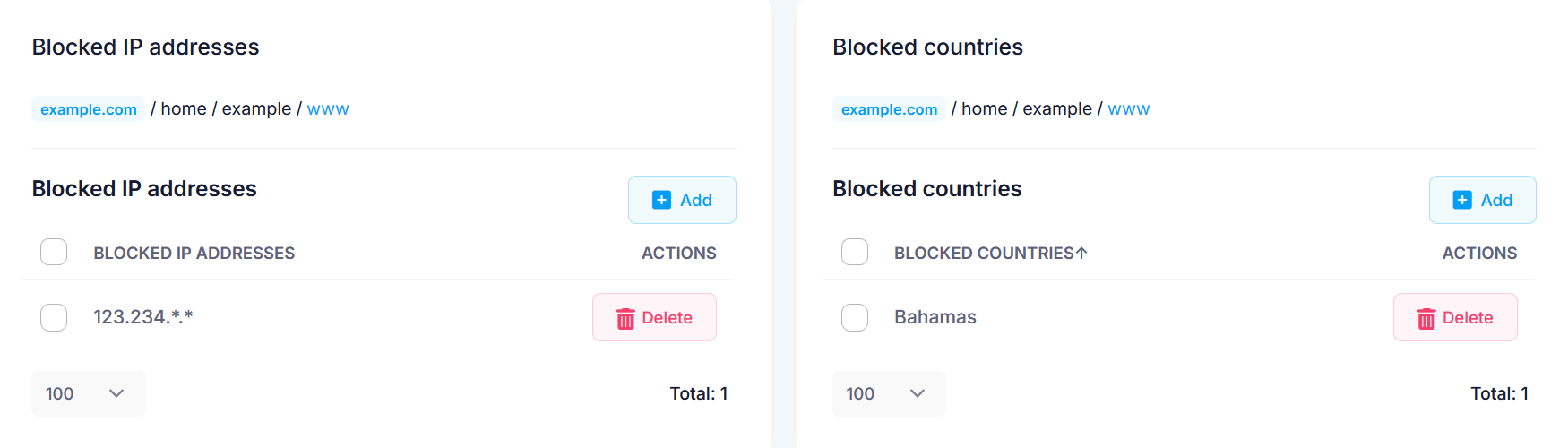
Blocking a single IP address
To block an IP address:
- Click Add next to Blocked IP addresses.
- Type in the IP address.
- Click Add.
The IP address will appear in the Blocked IP addresses section.
Blocking a network range
If you want to disallow the web access for a whole network, you can use wildcards. For example, if you want to block all IP addresses starting with 123.234, you need to specify:
123.234.*.*
This way all IP addresses from this network block (such as 123.234.34.45 for example) will not be able to open your website.
Removing an IP address/network range block
To remove an IP address or a network range from the block list, you need to either use the Delete button next to it, or check the box in front of the addresses you want to unblock, and click Delete selected.
Blocking a country
To block a whole country:
- Click Add next to Blocked countries.
- Choose a country from the drop-down.
- Click Add.
The country will appear in the Blocked Countries section.
The country level IP block uses the GeoIP database of MaxMind through the mod_maxminddb Apache module to determine which addresses belong to a specific country.
Removing a country block
To remove a country block you need to either use the Delete button next to it, or check the box in front of the countries you want to unblock, and click Delete selected.