Microsoft Outlook for Apple iPhone
To configure the Outlook App on your iPhone, please follow the steps below. Replace the placeholders with your actual details:
-
Email Address: Replace username@example.com with your actual email address.
- Server Host: Replace mail.your-server.com with your server's host name (listed in your Control Panel). For example, if your server is s777.sureserver.com, your Server Host would be mail.s777.sureserver.com.
1. Open the Outlook App and add an email account
If this is your first email account in Outlook, the "Add Account" screen will appear automatically. If not, tap:
- Your Profile icon (top left) > Settings (gear icon) > Accounts > Add Account > Email Account
2. Enter Your Email Address
On the "Add Account" screen, enter your email address:
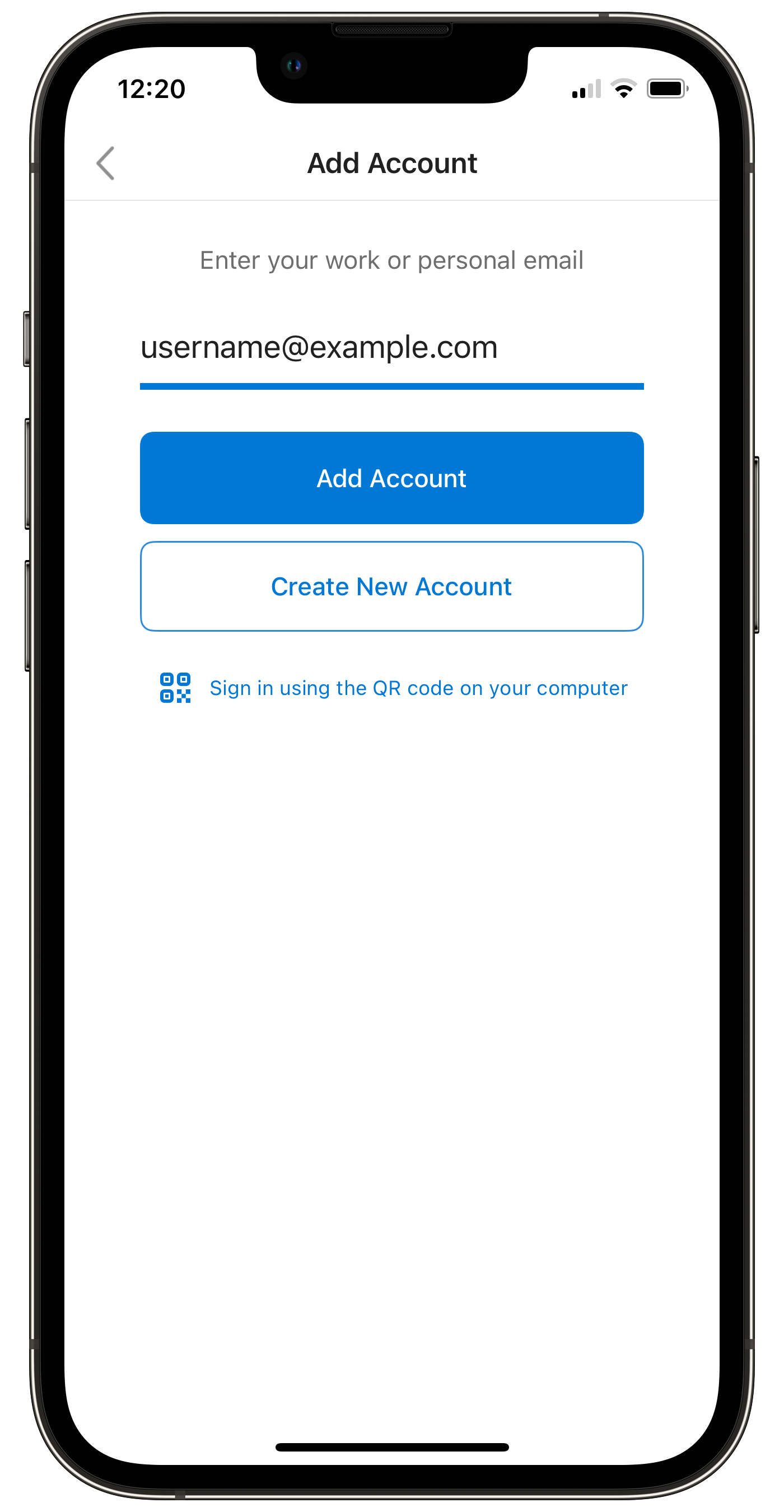
3. Set Up Account Manually
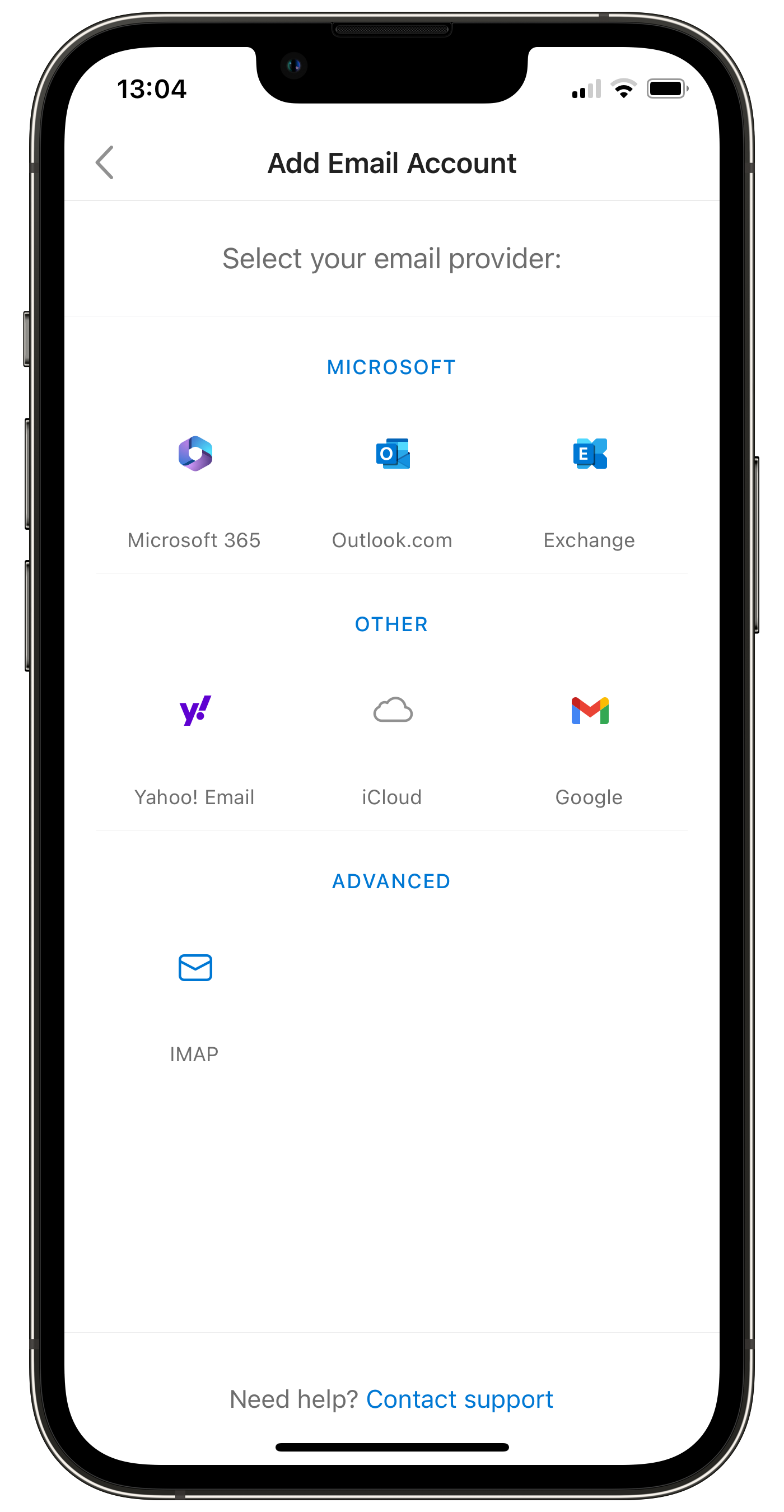
Outlook tries to guess the settings. The IMAP settings screen shows up. Tap < (top left) to go back. You will return to the email address screen. Tap Set Up Account Manually (this option only appears after auto-setup fails). When prompted to select an email provider, choose the IMAP option under Advanced:
4. Configure IMAP Settings
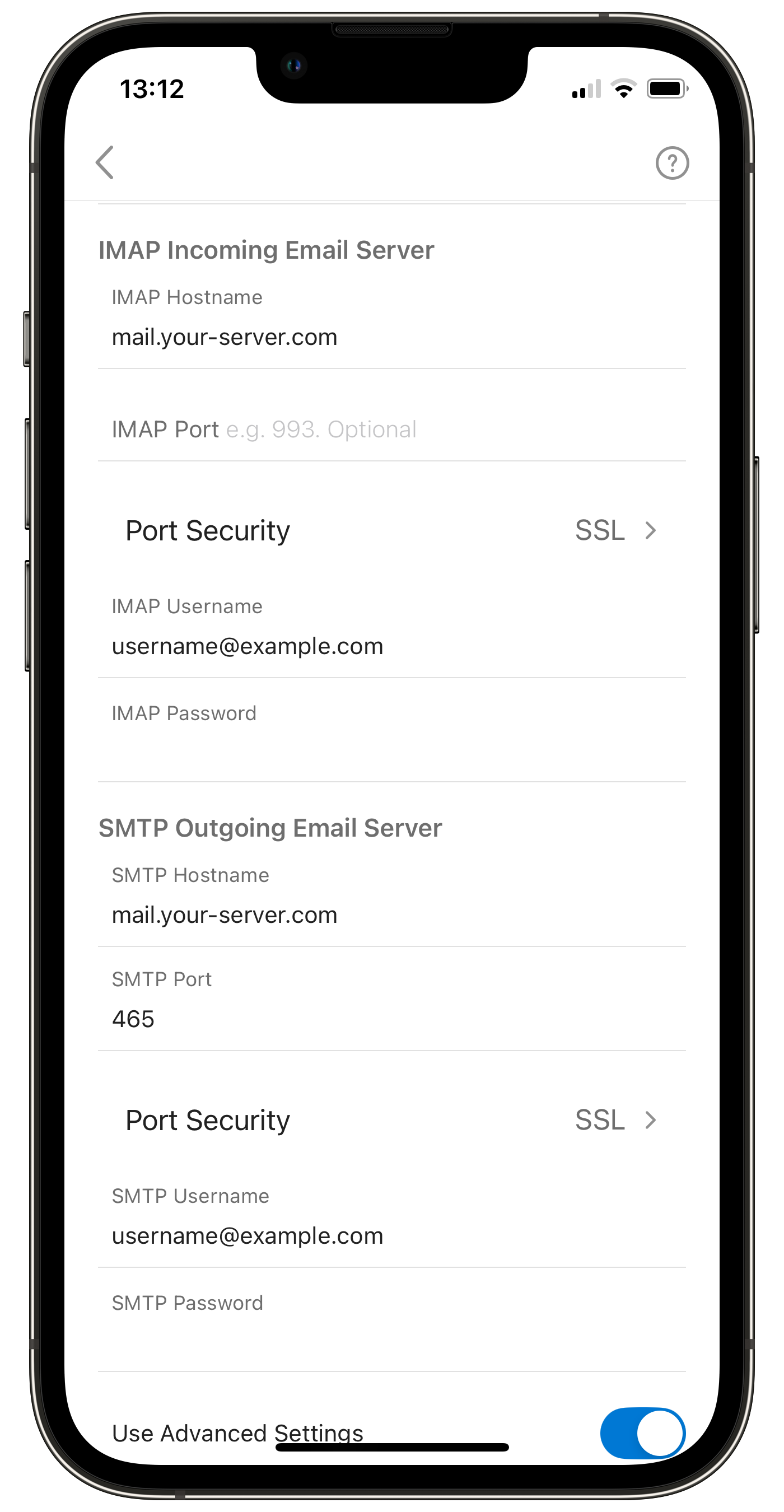
The IMAP settings screen will appear. Ensure that Use Advanced Settings is toggled on. Enter the following settings:
- IMAP Incoming Email Server
- IMAP Hostname: mail.your-server.com
- IMAP Port: 993
- Port Security: SSL
- IMAP Username: username@example.com
- IMAP Password: <your_email_password>
- SMTP Outgoing Email Server
- SMTP Hostname: mail.your-server.com
- SMTP Port: 465
- Port Security: SSL
- SMTP Username: username@example.com
- SMTP Password: <same_as_imap_password>
5. Sign In
Tap Sign In. Swipe through privacy and diagnostic data screens, if they appear.