Setting up an Autoresponder/Vacation message
To add or modify an autoresponder:
- Go to the Mail Manager section.
- Click on the checkbox in the Auto respond column of the mail account.
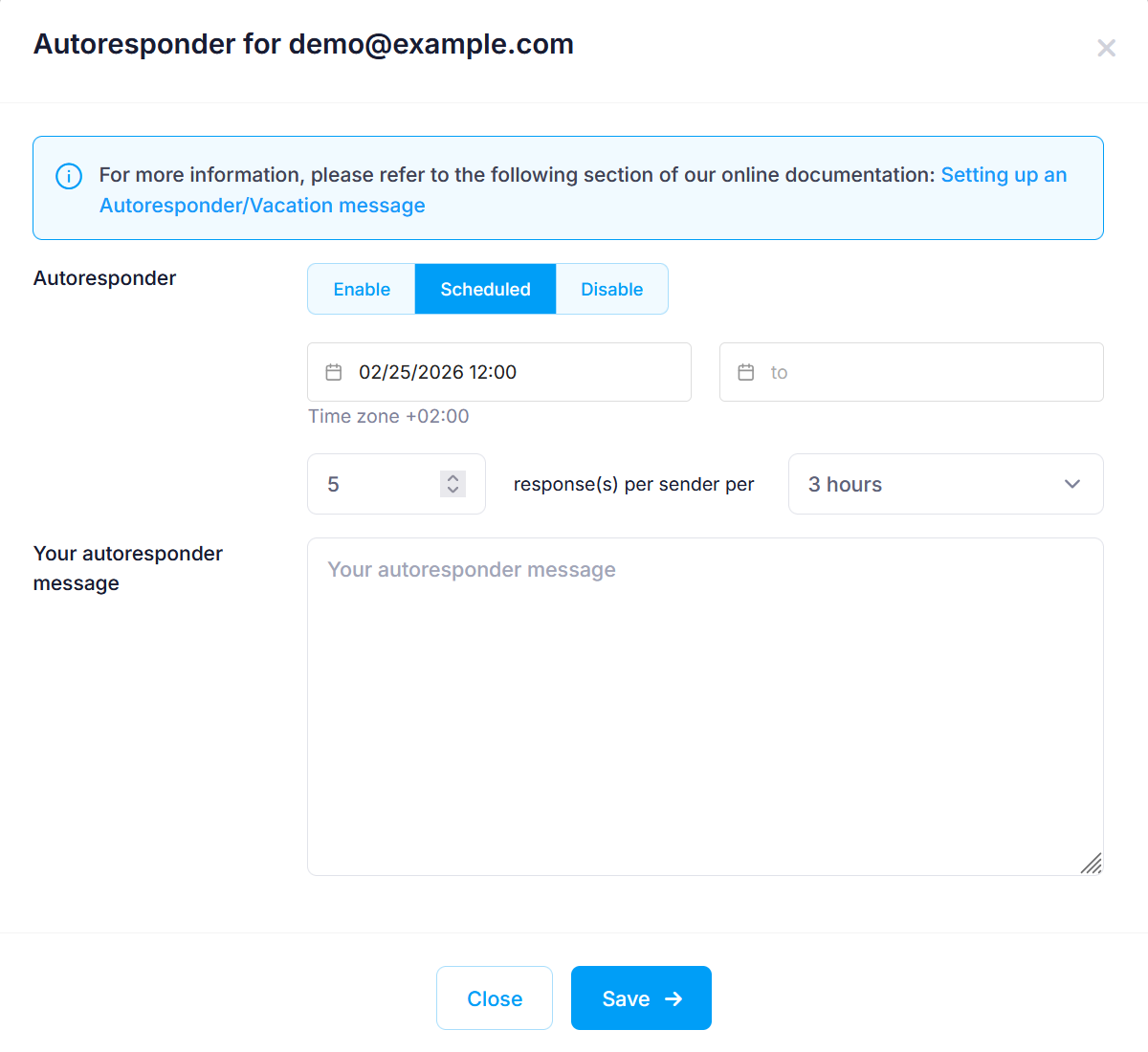
- Click on Enable. I
f you wish to schedule an autoresponder message, select Scheduled, and you will see a calendar from where you can set the schedule.
You have the option to configure how many times an auto-response message will be returned to a sender within a given period of time. The default setting is 5 responses per 3 hours. This means that if the same sender sends multiple messages to your address, they will only receive five automated responses within 3 hours after the first message. The maximum response interval is 2 messages per 1 hour.
- Enter the autoresponder message in the text box.
- Click the Save button.
No autoreply messages are sent for emails that are flagged as spam and moved to the Junk Mail folder. This ensures that automatic responses are delivered only for legitimate incoming mail.