Microsoft Outlook 2003 (POP3)
To configure Microsoft Outlook 2003 to send and receive email using our servers using POP3, please follow the steps below. Please replace:
 |
username@example.com with your email address example.com with your domain name |
1. Open Microsoft Outlook.
2. Choose "Tools" -> "E-mail Accounts".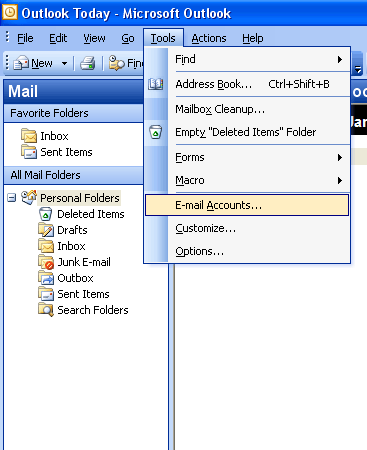
3. Select "Add a new e-mail account".
Click on "Next".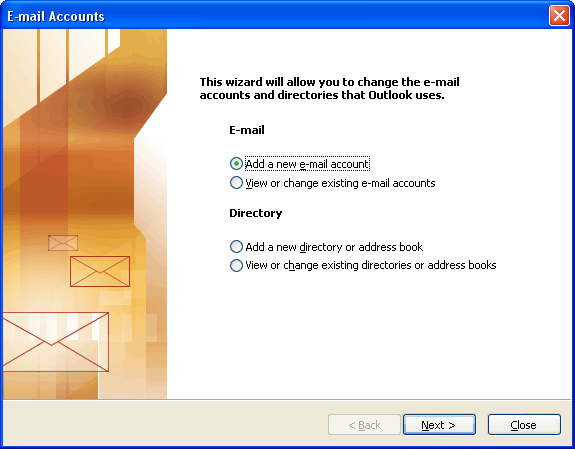
4. Select "POP3" for server type.
Click on "Next".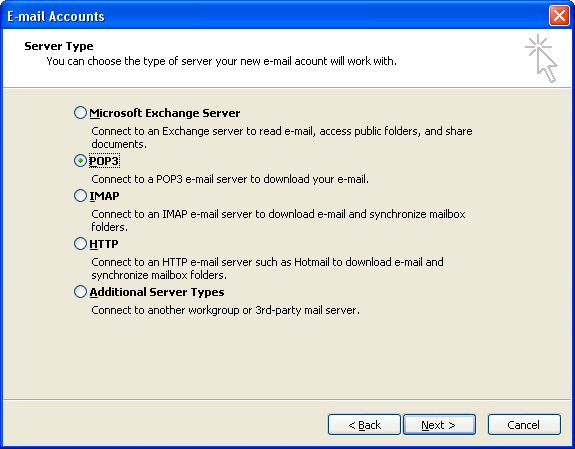
5. In the "Your name" field you should enter the name which you would like to appear on the messages you send.
You need to enter your e-mail address username@example.com in the E-mail Address field.
For incoming and outgoing mail servers you should use mail.example.com
You should use username@example.com for username. In the "Password" field you need to enter the current password for this particular mailbox.
Leave the "Log on using Secure Password Authentication (SPA)" option unchecked.
Click on "More Settings ..."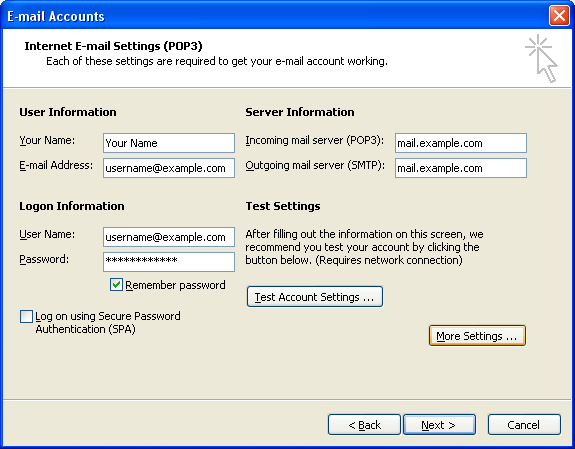
6. Click on the "Outgoing Server" tab.
Mark the "My outgoing server (SMTP) requires authentication" option. 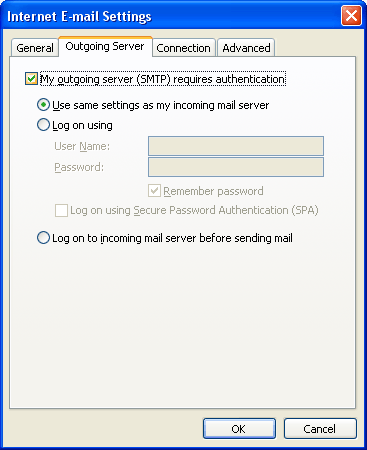
7. Click on the "Advanced" tab.
Set the "Outgoing server (SMTP)" port to 587.
Click on "OK".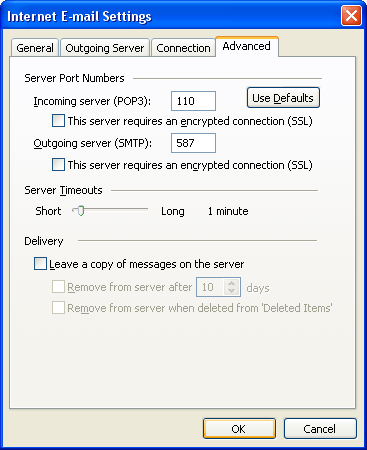
8. Click on "Next".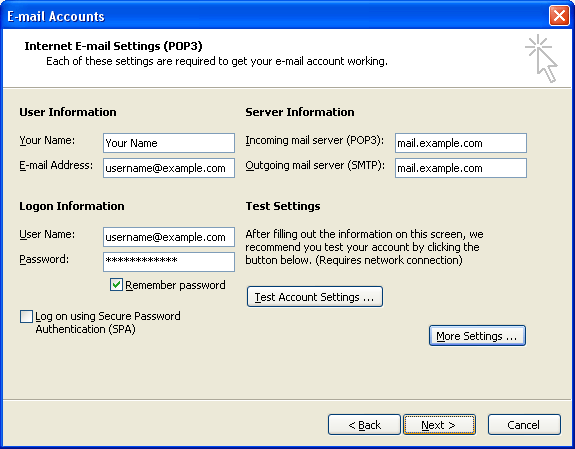
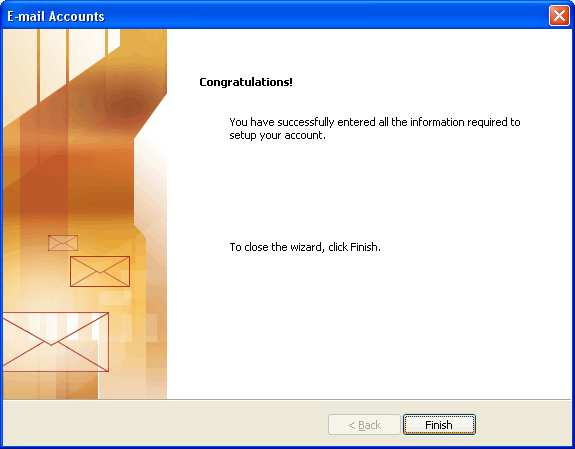
9. Click on "Finish".